
DocumentationForms & requestsThe Forms home and its modulesRecruit: job offers and candidate tracking
Move or reject several candidates at once
In Weplanify, the Select mode of the Candidates tab ticks candidates in one or several steps, so you can move them or reject them all together.
In Weplanify, an offer shared on WhatsApp or on a poster quickly gets dozens of applications. The Select mode of the Candidates tab handles them in batches, without opening each file.
Steps
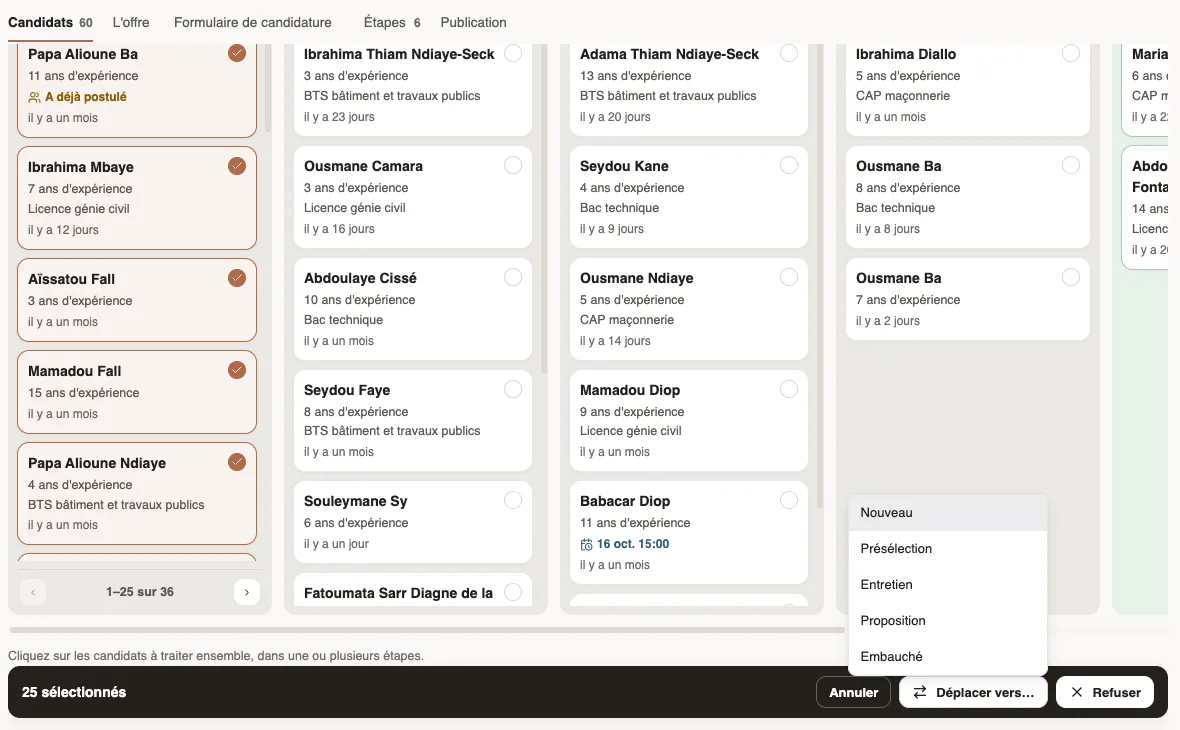
- Open the offer, Candidates tab, and click Select, to the right of the search box.
- Click the candidates to handle, in one or several steps. Select all, at the top of a step, ticks the candidates of the page shown.
- In the bar at the bottom, click Move to… and choose the step: "25 candidates moved to "Shortlist"".
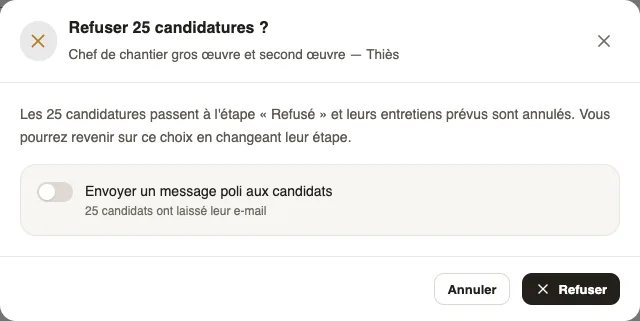
- To turn the chosen candidates down, click Reject. Switch on Send a polite message to the candidates if you want to tell them, then click Reject or Reject and send the message.
Good to know
- Move to… does not offer the Rejected step: use Reject, which also cancels the planned interviews (reject an application).
- Interviews are planned one by one, from each candidate's file (invite to an interview).
- One action handles 100 candidates at most.
- Changing the search or the dates clears the selection. Leave selection or Cancel clears it too.
- The polite message only goes to candidates who left their e-mail; the window says how many did not.
Go further
Reject an application and tell the candidateIn Weplanify, rejecting an application moves it to the Rejected step; a polite message goes to the candidate only when you switch it on yourself.Invite a candidate to an interviewIn Weplanify, an interview is set from the candidate's file: day, time, place or video call, people from the company and an e-mail invitation.Recruit: job offers and candidate trackingIn Weplanify, Recruitment shows your job offers as cards: create an offer, share its link and follow every candidate from application to hiring.Move candidates from step to stepIn Weplanify, the Candidates tab puts each candidate in their step: search, sort, drag their card or open their file to read the application and decide.