
The result of a quiz for the employee
In Weplanify, as soon as a quiz is sent, the employee sees their score, their right answers, the questions to review and, once it is over, the right answer.
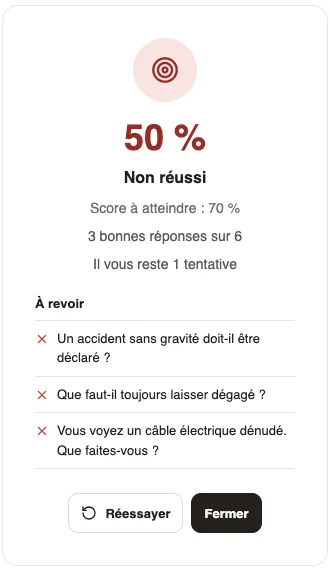
In Weplanify, a quiz that has been sent shows its result to the employee straight away: the score, Passed! or Not passed, the number of right answers and the To review list.
Steps
- Answer the quiz, then click Submit quiz (answer a quiz).
- Read the result: the score, the Score to reach, then for example "3 right answers out of 6" and the attempts left.
- Under To review, read again the questions you got wrong.
- If an attempt is left, click Try again; otherwise, Close.
Good to know
- The right answer shows under each question to review only once the quiz is passed or no attempt is left: before that, the employee knows what to review, without the answer.
- Only choice questions count in the number of right answers.
- Without a score to reach, the result reads Your answers are recorded., with neither Passed nor Not passed.
- The administrator finds each attempt in the scores of the quiz.
Go further
Answer a survey or a quizIn Weplanify, employees answer from Make a request; the ones waiting for them stay at the top and a forgotten required answer is marked in red.Follow the scores of a quizIn Weplanify, a quiz's Results and By employee tabs give the average score, the pass rate, the right answers per question and each employee's score.Create a quiz with a score to reachIn Weplanify, create a quiz: mark the right answers, set the score to reach, the number of attempts and which attempt counts for each employee.