
Copy a previous week into the planning
In Weplanify, copy one of the six previous weeks onto the week shown in a single click, when your rotations look alike from one week to the next.
In Weplanify, copying a week copies all the slots of a past week onto the week shown.
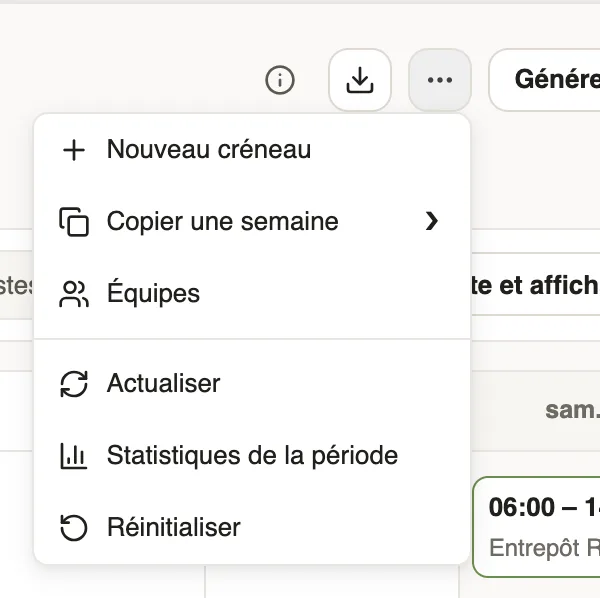
Steps
Good to know
- The copy adds to existing slots: nothing is erased.
- Only the week's slots are copied; the usual week already shows on its own. Inactive employees are skipped and copies arrive as drafts.
- Current filters limit the copy. For a few slots only: Select → Copy to.
Go further
The planning alertsIn Weplanify, spot before publishing the slots in conflict (leave, double booking) and the days when the minimum staffing level is not reached.Publish the planningIn Weplanify, publish the week so that your employees see their slots: as long as they are drafts, only the people managing the planning can see them.The usual week (recurring planning)In Weplanify, an employee's usual week comes back on its own every week, shifted days off included, without typing the same slots over again.Filter and sort the planningIn Weplanify, show only the site, group or job you care about, choose what the slots display, and then sort the employees in the order you need.Act on several slots at onceIn Weplanify, select several slots to edit, copy or transfer them, turn them into an absence or into a team, or delete them all in a single go.The team planningIn Weplanify, the planning says who works, when and where, week after week; the slots stay as drafts until you publish them to your employees.Move or copy a slot by drag and dropIn Weplanify, drag a slot to another day or another employee to move it, or hold down Alt to copy it instead, without typing anything again.