
Offer an open slot
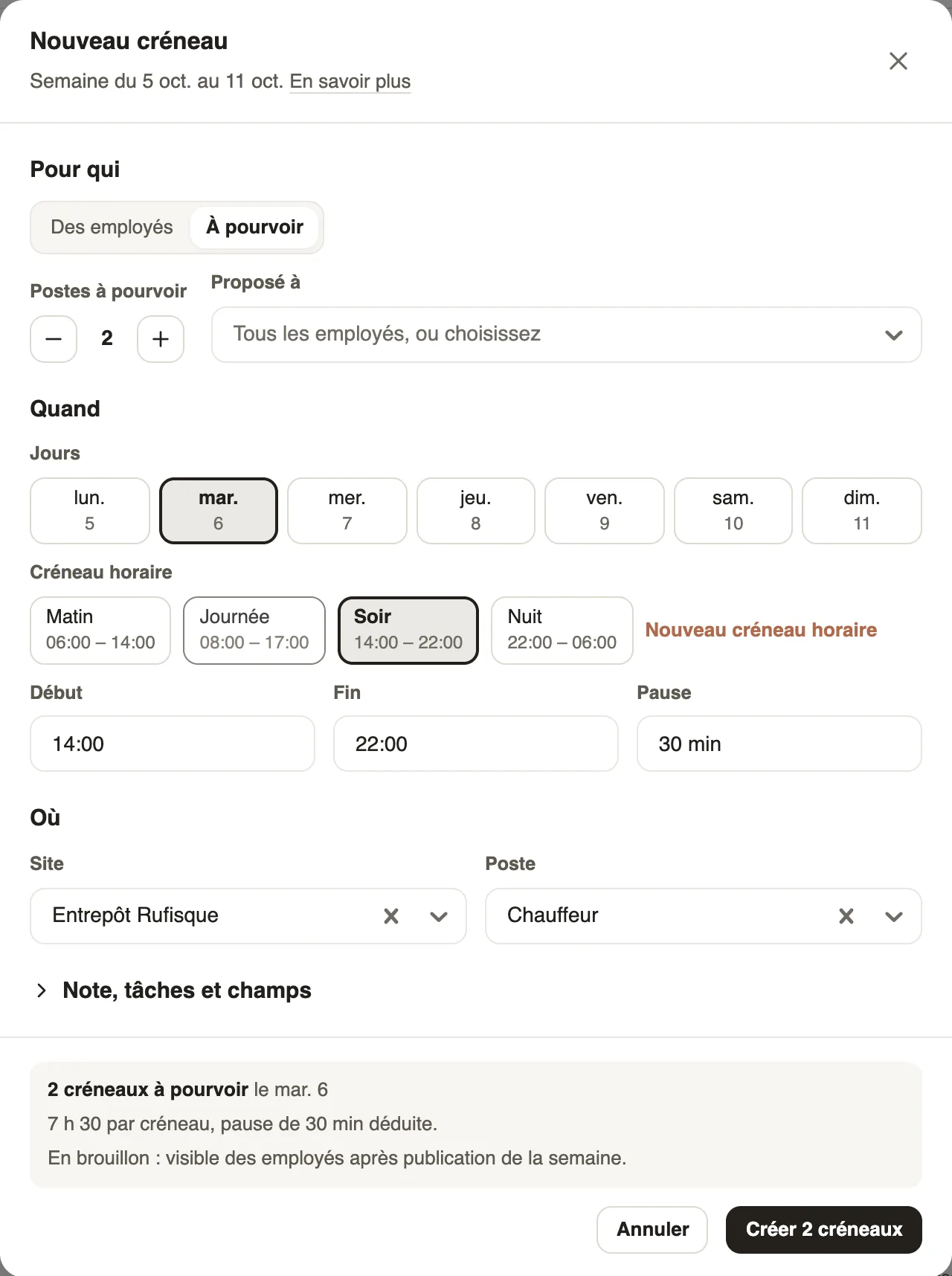
In Weplanify, publish a slot without a name, for example extra help on Saturday: the employees it is offered to can take it from their phone.
In Weplanify, an open slot is a slot without an employee. It shows on the Open planning row, at the top of the grid.
Steps
Good to know
- The employees concerned see the slot in the mobile app and can take it.
- An open slot is also used to announce a need for day labourers.
- An existing slot can become open: Transfer to → Open planning / available.
Go further
Create a slot in the planningIn Weplanify, a slot says who works, on which days, at what time, on which site and in which job; it is created as a draft, for one or several employees.Publish the planningIn Weplanify, publish the week so that your employees see their slots: as long as they are drafts, only the people managing the planning can see them.View your schedule on mobileSee your week in the Weplanify app: hours, break, position and location for each day, and your shift's task list.Announce a need for day labourersIn Weplanify, announce in advance how many day labourers each site needs per job: the site manager sees the need and each arrival fills it in.Act on several slots at onceIn Weplanify, select several slots to edit, copy or transfer them, turn them into an absence or into a team, or delete them all in a single go.