
Export the planning to PDF
In Weplanify, download the planning shown as a PDF, in compact initials or in full hours, to put it up in the break room or to send it around.
In Weplanify, the PDF shows exactly what is displayed: the period, the filters and the sites.
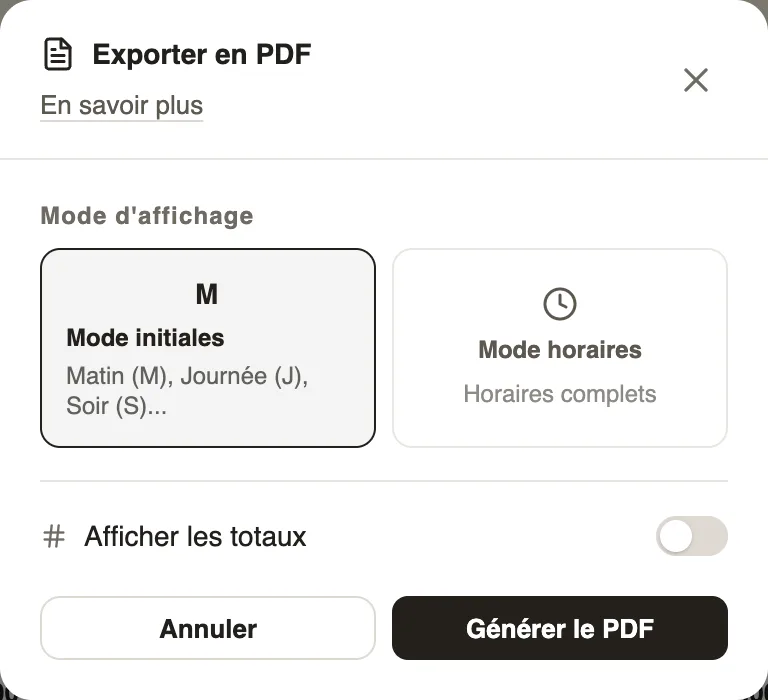
Steps
- Click the Download the planning icon, at the top right.
- Choose Initials mode (M, D, E…) for a compact table, or Schedule mode for full hours.
- Turn on Show totals if needed, then click Generate PDF.
Go further
Filter and sort the planningIn Weplanify, show only the site, group or job you care about, choose what the slots display, and then sort the employees in the order you need.The planning viewsIn Weplanify, switch from the week's planning to the month's, and read it by employee, by job or by schedule, in hours or in codes (M, D, E, N).Create the work schedules (Morning, Evening, Night)In Weplanify, define the Morning, Day, Evening and Night schedules once, with their break and days, then pick them in one click in each slot.