
Generate the week automatically
In Weplanify, let the planning share out mornings, evenings, nights and rest days according to your criteria: leave, night duty, fixed hours and days off.
In Weplanify, generation fills the week from the workspace's schedules and the criteria you choose.
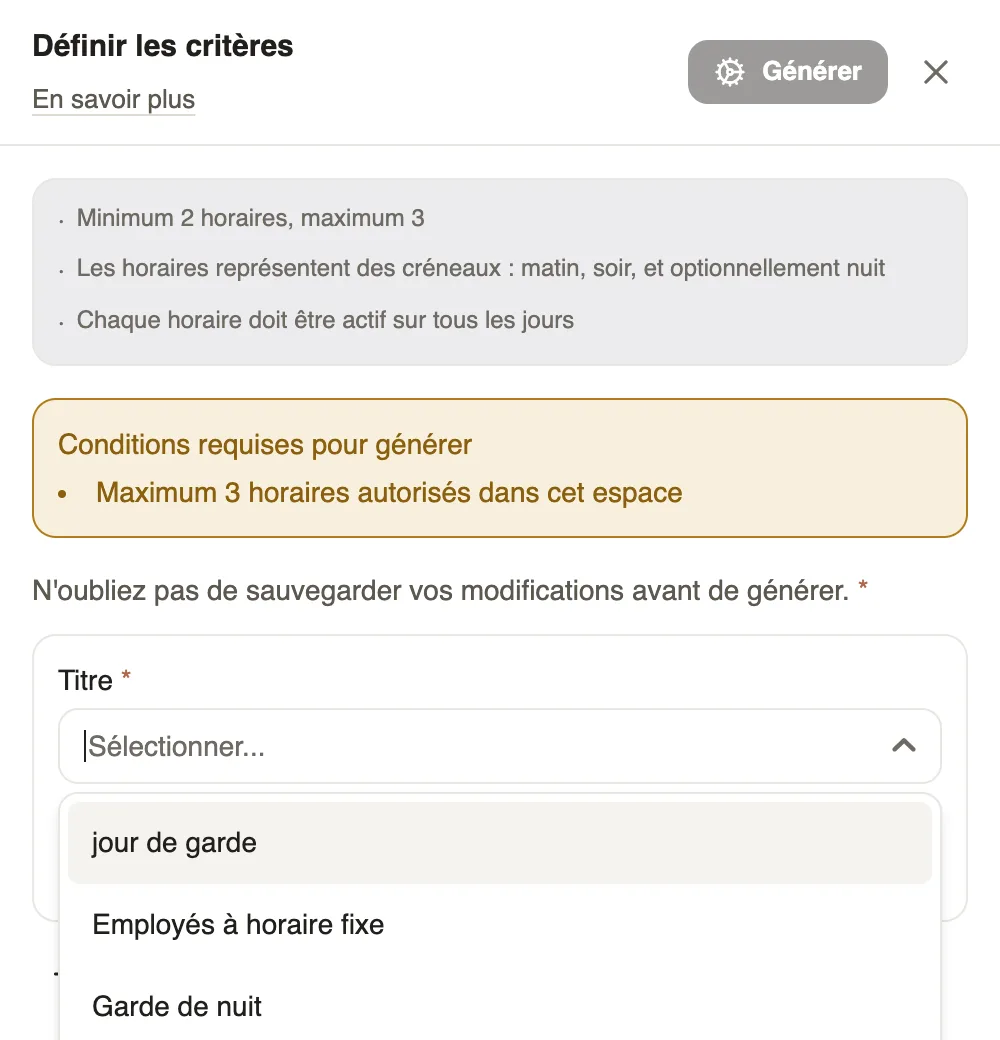
Steps
- Click Generate the week (Generate in month view).
- Read the conditions box: 2 or 3 schedules in the space, each active every day.
- Click Add a criterion: employees unavailable or on leave, fixed days off, employees on fixed hours, night duty, on-call day.
- Click Save, then Generate.
Good to know
- Always add Employees unavailable or on leave, otherwise an employee on leave may be scheduled.
- The result is a draft: read it, then publish.
- With more than 3 schedules, generation is blocked: create a dedicated workspace (for example Security on Morning, Evening and Night) or use team rotations.
Go further
Create the work schedules (Morning, Evening, Night)In Weplanify, define the Morning, Day, Evening and Night schedules once, with their break and days, then pick them in one click in each slot.Publish the planningIn Weplanify, publish the week so that your employees see their slots: as long as they are drafts, only the people managing the planning can see them.The planning's workspacesIn Weplanify, a workspace is a separate planning, per department or per site, with its own members, its own schedules and its own set of teams.Plan by teams and rotationsIn Weplanify, plan a whole team at once and rotate your teams over the morning, evening and night shifts with a ready-made rotation model to start.The team planningIn Weplanify, the planning says who works, when and where, week after week; the slots stay as drafts until you publish them to your employees.