
Create the work schedules (Morning, Evening, Night)
In Weplanify, define the Morning, Day, Evening and Night schedules once, with their break and days, then pick them in one click in each slot.
In Weplanify, a schedule is a slot template: a name, a start time, an end time, a break and the days it applies.
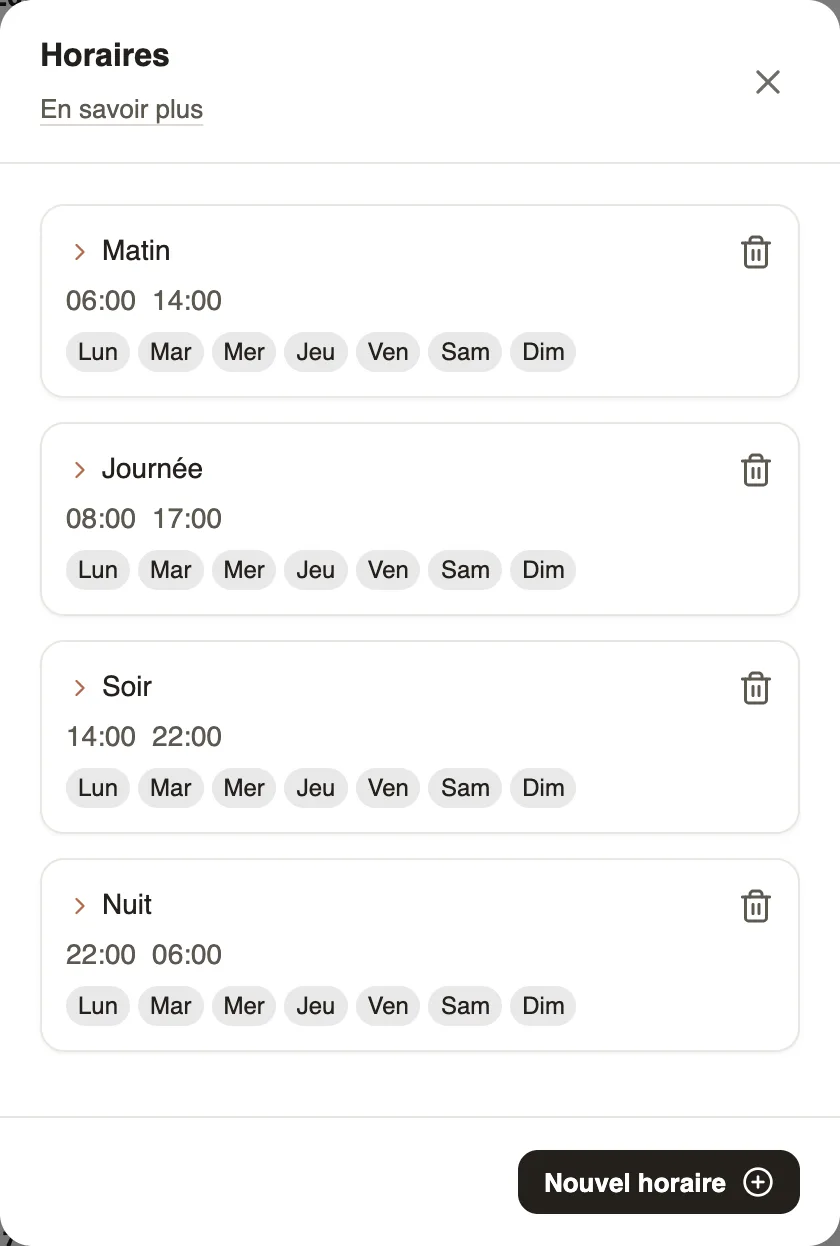
Steps
- Open Filters → Groups, job and display, then Schedules.
- Click New schedule.
- Give a name, the start and end time (22:00 → 06:00 for a night), the break and the Active days, then Save.
Good to know
- A night schedule can end the next day: 22:00 → 06:00 is valid.
- Schedules are offered under Shift in each slot; their initial (M, D, E, N) is used in the month view and in the PDF.
- Each workspace has its schedules; generation needs 2 or 3, active every day.
Go further
Create a slot in the planningIn Weplanify, a slot says who works, on which days, at what time, on which site and in which job; it is created as a draft, for one or several employees.The planning viewsIn Weplanify, switch from the week's planning to the month's, and read it by employee, by job or by schedule, in hours or in codes (M, D, E, N).Export the planning to PDFIn Weplanify, download the planning shown as a PDF, in compact initials or in full hours, to put it up in the break room or to send it around.The planning's workspacesIn Weplanify, a workspace is a separate planning, per department or per site, with its own members, its own schedules and its own set of teams.Generate the week automaticallyIn Weplanify, let the planning share out mornings, evenings, nights and rest days according to your criteria: leave, night duty, fixed hours and days off.The team planningIn Weplanify, the planning says who works, when and where, week after week; the slots stay as drafts until you publish them to your employees.Filter and sort the planningIn Weplanify, show only the site, group or job you care about, choose what the slots display, and then sort the employees in the order you need.