
Edit or delete a slot in the planning
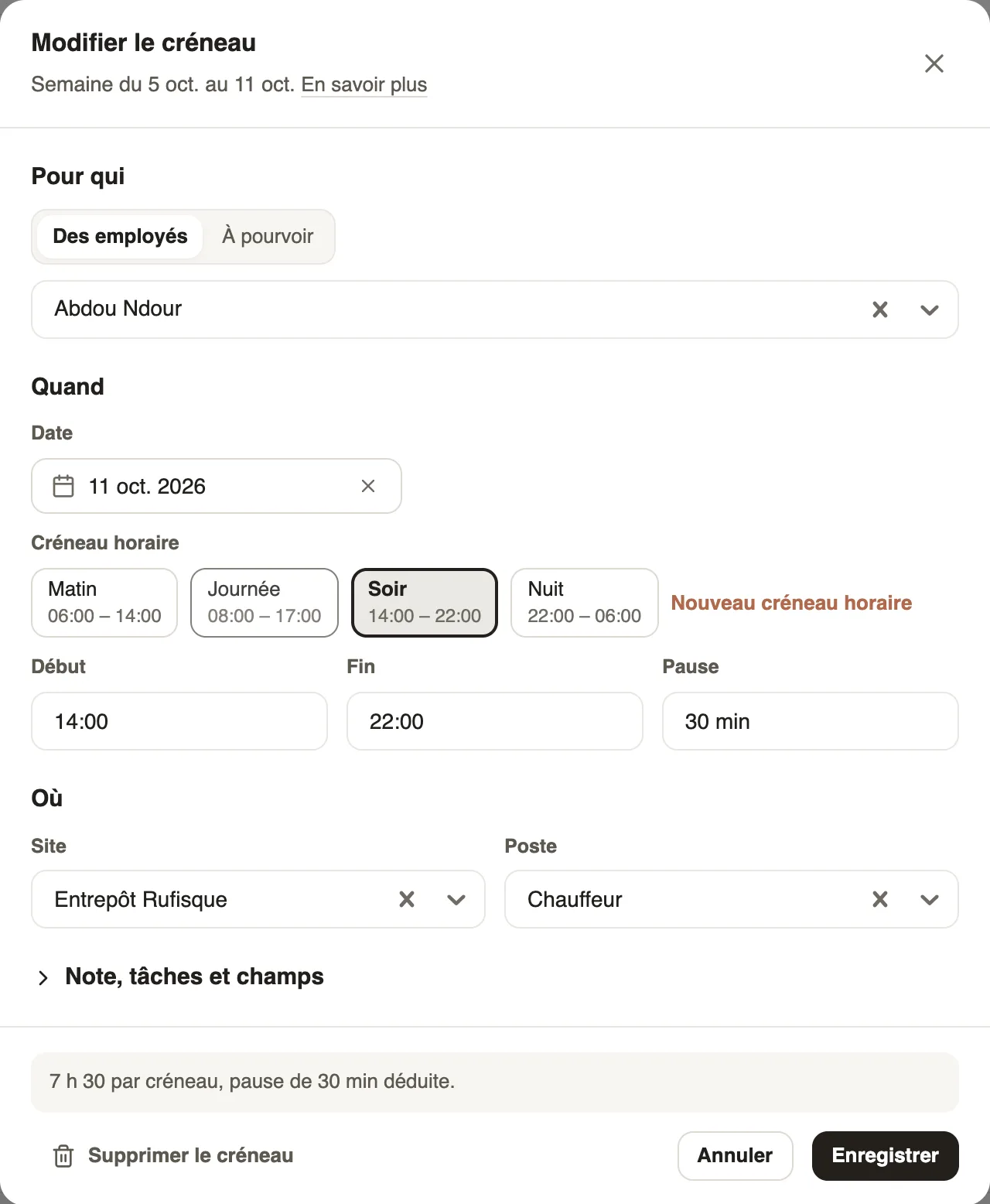
In Weplanify, clicking a slot opens its window to change the employee, the schedule, the site or the job, or to delete it from the planning.
In Weplanify, each slot opens with a click in the Edit slot window.
Steps
- Click the slot in the grid.
- Change what needs changing: employee, date, shift or hours, site, job, note.
- Click Save, or Delete slot to remove it.
Good to know
- An edited slot goes back to draft: publish the week for the employee to see the change.
- A slot from the usual week (↻ icon) offers to change only this week, or to edit the usual week.
- Past days can no longer be changed. For several slots at once: multiple selection.
Go further
Publish the planningIn Weplanify, publish the week so that your employees see their slots: as long as they are drafts, only the people managing the planning can see them.The usual week (recurring planning)In Weplanify, an employee's usual week comes back on its own every week, shifted days off included, without typing the same slots over again.Act on several slots at onceIn Weplanify, select several slots to edit, copy or transfer them, turn them into an absence or into a team, or delete them all in a single go.