
Act on several slots at once
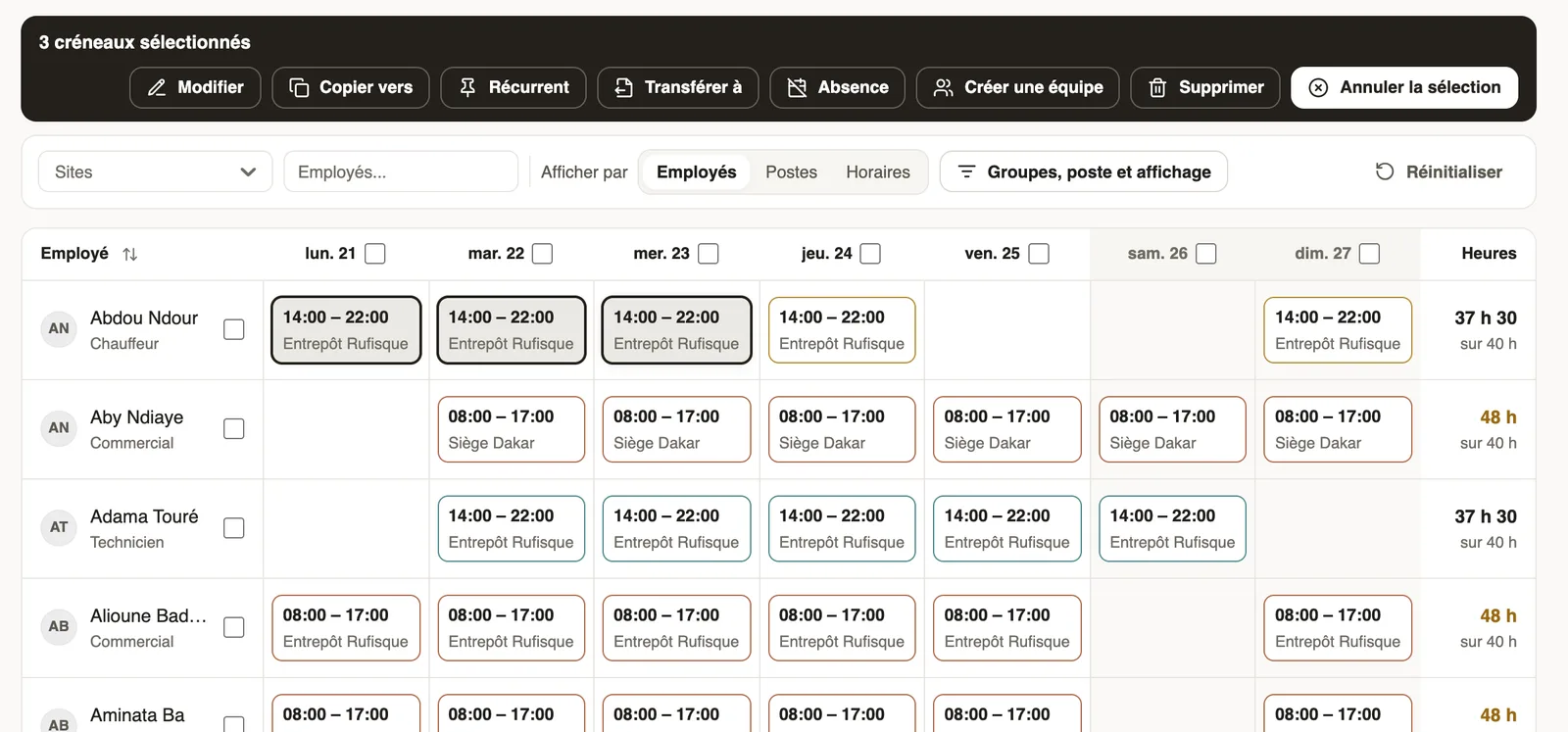
In Weplanify, select several slots to edit, copy or transfer them, turn them into an absence or into a team, or delete them all in a single go.
In Weplanify, selection mode saves time as soon as more than two slots must change.
Steps
- Click Select (the check box, left of the filters).
- Click the slots, or tick a day's or an employee's box to take them all.
- Choose the action: Edit (schedule, job, site, break, note, tasks in bulk), Copy to another week, Recurring, Transfer to another employee, Absence, Create a team or Delete.
- Cancel selection returns to the grid.
Good to know
- With Transfer to, tick Duplicate to this employee to keep the original; Open planning / available turns them into open slots.
- Recurring makes the chosen slots the usual week of the employees concerned.
- Edited slots go back to draft.
Go further
Create an absence from the planningIn Weplanify, record that a scheduled employee will be absent straight from their slots, without leaving the planning or typing the dates again.Offer an open slotIn Weplanify, publish a slot without a name, for example extra help on Saturday: the employees it is offered to can take it from their phone.The usual week (recurring planning)In Weplanify, an employee's usual week comes back on its own every week, shifted days off included, without typing the same slots over again.Add custom fields to slotsIn Weplanify, add to every slot a piece of information specific to your business, such as the vehicle, client or zone, and show it in the grid.Copy a previous week into the planningIn Weplanify, copy one of the six previous weeks onto the week shown in a single click, when your rotations look alike from one week to the next.Plan by teams and rotationsIn Weplanify, plan a whole team at once and rotate your teams over the morning, evening and night shifts with a ready-made rotation model to start.Edit or delete a slot in the planningIn Weplanify, clicking a slot opens its window to change the employee, the schedule, the site or the job, or to delete it from the planning.