
Create and manage employee groups
In Weplanify, a group brings employees together for planning, forms, approvals, bonuses and documents, and it also sets a manager's own scope.
In Weplanify, the Groups screen (People menu) sorts groups into three families: Your groups, those Created automatically (one per site and "All employees") and the Planning teams.
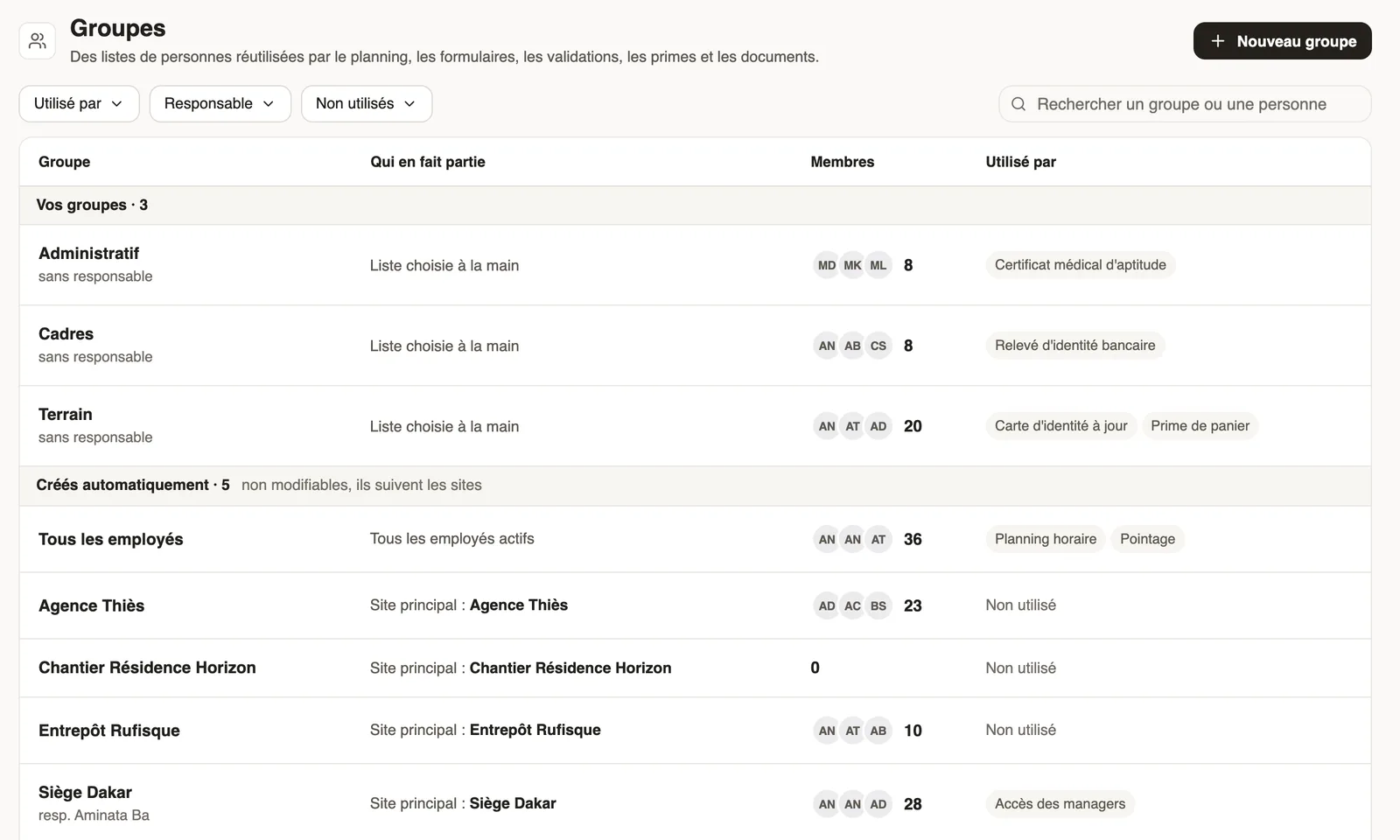
Steps
- Click New group.
- Choose People who match criteria (the group updates itself) or People I choose (first aiders, committee…).
- Add criteria with Criterion: site, team, job, title, manager, contract type, start date; or choose the people.
- Check the preview "Today, this group has …", give it a name, add Managers, then Create group.
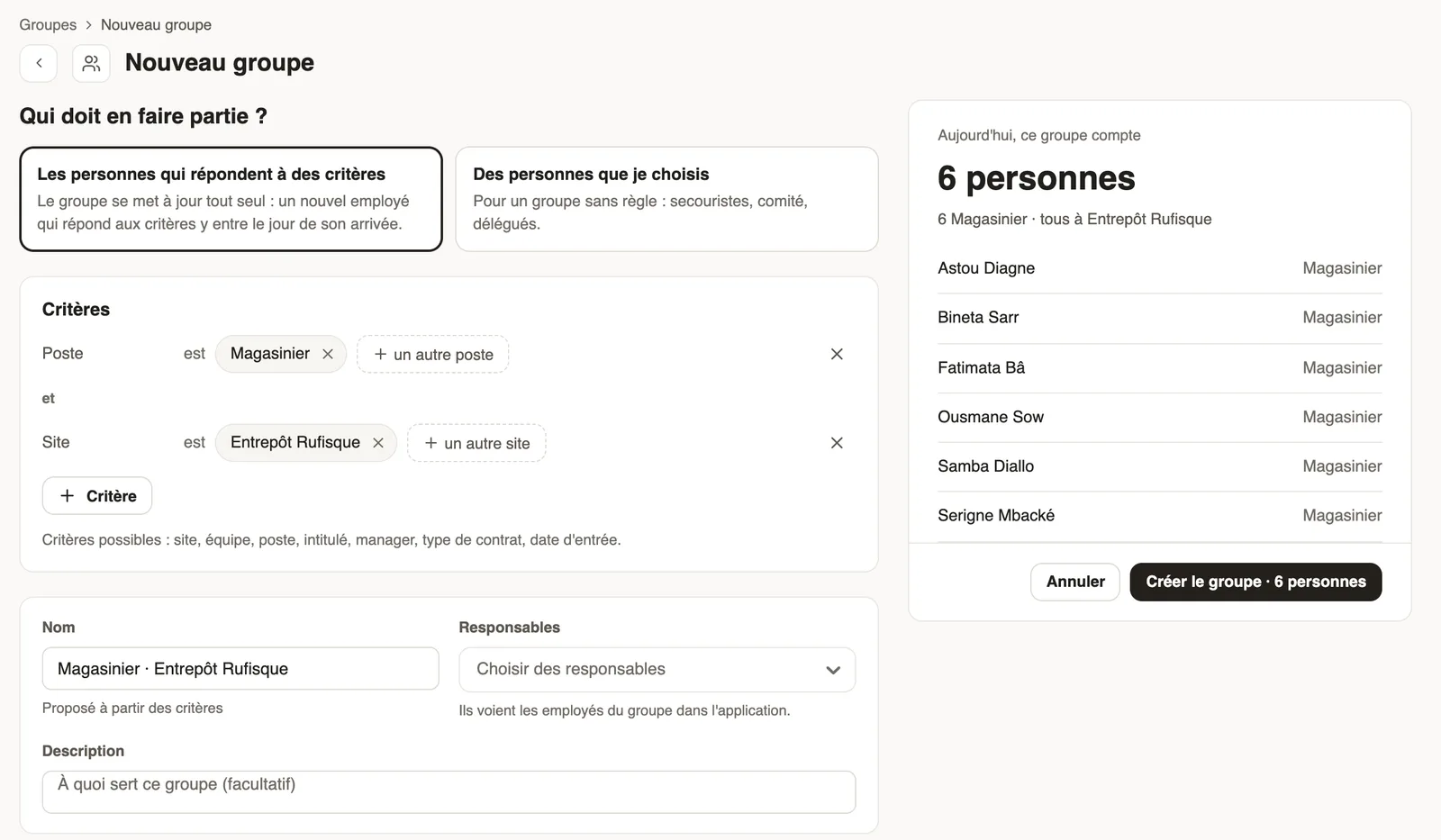
Good to know
- Criteria are reserved for administrators.
- The Used by column and the Not used filter show where each group is used; details on the group's page.
- Groups are used by the planning, forms, document collections and managers' access.
Go further
A group's page: members, managers and usesIn Weplanify, a group's page shows who is in it and why, who manages it and where it is used, before you change it or delete it altogether later.Filter and sort the planningIn Weplanify, show only the site, group or job you care about, choose what the slots display, and then sort the employees in the order you need.Choose who can answer a form, and whenIn Weplanify, a form's Sharing step sets who can answer it (everyone, some sites, some groups or some people) and during which period of time.Request a document from your employees (collection)In Weplanify, a collection requests the same paper (ID card, bank details, medical certificate…) from a group of employees, with a deadline to meet.Give an employee a role and accessIn Weplanify, make an employee a manager or an administrator from the Access tab of their record: role, groups they manage and what they can do.Create and set up a siteIn Weplanify, declare your workplaces, their geolocation clock-in area, their time zone and their own overtime rules, one site at a time here.Filter a list by site, group, job or contractIn Weplanify, the same filter bar narrows a list or a report down to a group of people: site, department, job, group, manager or contract type.Choose who signs a document and in which orderIn Weplanify, have a document signed by employees, a whole group or someone outside the company, one after the other or each on their own copy.Manage your employees in WeplanifyIn Weplanify, each employee has a record used everywhere: planning, time clock, leave and payroll. Here is how to create it and keep it up to date.Plan by teams and rotationsIn Weplanify, plan a whole team at once and rotate your teams over the morning, evening and night shifts with a ready-made rotation model to start.The planning's workspacesIn Weplanify, a workspace is a separate planning, per department or per site, with its own members, its own schedules and its own set of teams.Split time entries by clockIn Weplanify, a clock gives a site or a team its own separate list of time entries, visible only to the groups of employees that you choose.