
Receive employees' HR requests
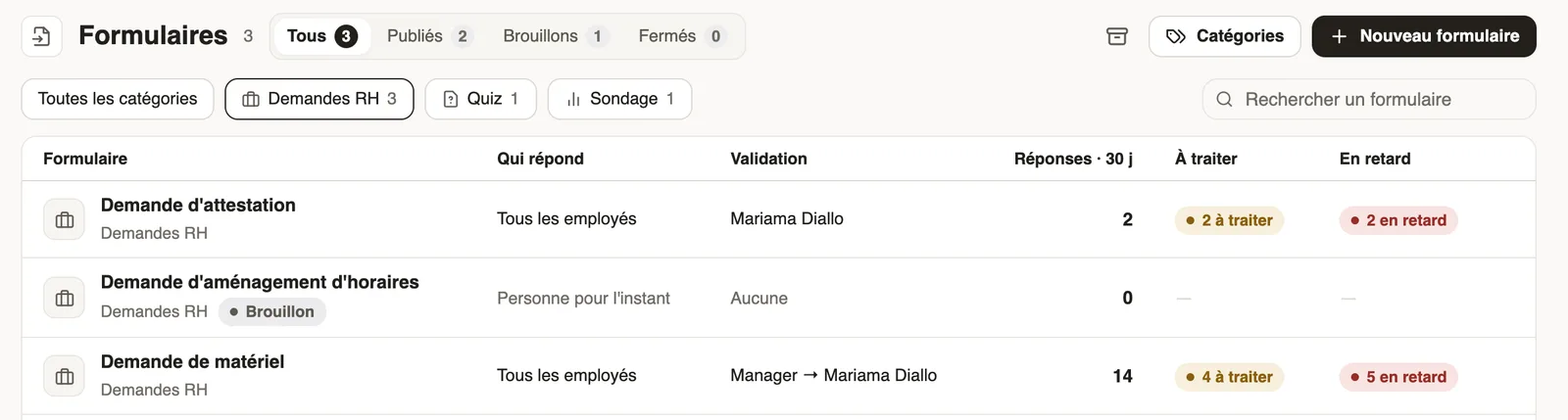
In Weplanify, HR requests is a category of forms (equipment, certificate, working hours) that employees find in their Make a request screen.
In Weplanify, HR requests is no longer a menu of its own: it is a forms category, like Reports or Incidents. Its forms show under this heading in Make a request.
Steps
- In Requests → Forms, click the HR requests pill to see its forms.
- To add one: New form, A request to approve, then a template (Equipment request, Administrative document request, Training request…); keep the Category HR requests (see create a form).
- At the Validation step, choose who approves, for example the manager then HR (approval circuit).
- Publish it: employees find it in Make a request and on their phone.
- Each request reaches Requests → To handle for its approver (handle a request) and the form's Responses tab.
Good to know
- The former HR requests address opens the forms list filtered on this category.
- Leave, expense claims and advances have their own block in Make a request: Leave, expenses and advances.
- The employee follows the request in My requests.
Go further
Sort forms into categoriesIn Weplanify, categories sort your forms: their icon, their sentence, who sees them and their order in the employees' Make a request screen.Create a form and add its questionsIn Weplanify, create a form from your need and a ready-made template, then adjust its questions while the phone preview shows what employees see.Configure an approval circuitIn Weplanify, build the approval steps of a leave request, an expense, an advance or a form: the order, the name, the approver and when each step applies.Publish a form and let employees knowIn Weplanify, publish a form and let people know: notification, New card on the home screen, poster; then close it or reopen it whenever needed.Make a request: leave, expense, advance or formIn Weplanify, the Make a request screen brings leave, expense claims, advances and forms together: find what you need and send your request.Make a request or fill in a form on mobileIn Weplanify, employees make their requests from the app: an expense, an advance, a schedule change, a report or any other form, then follow them.Approve, refuse or send a request back for changesIn Weplanify, open a request waiting for you, discuss it if needed, then approve it, refuse it or ask its author to change it before deciding again.Follow, approve and export a form's responsesIn Weplanify, a form's Responses tab sorts answers by status, opens each one on the side so you can decide, and exports everything to Excel.Follow your requests: correct, remind, cancelIn Weplanify, My requests shows where each of your requests stands and who holds it: correct it, remind the approver or cancel it when needed.