
Follow, approve and export a form's responses
In Weplanify, a form's Responses tab sorts answers by status, opens each one on the side so you can decide, and exports everything to Excel.
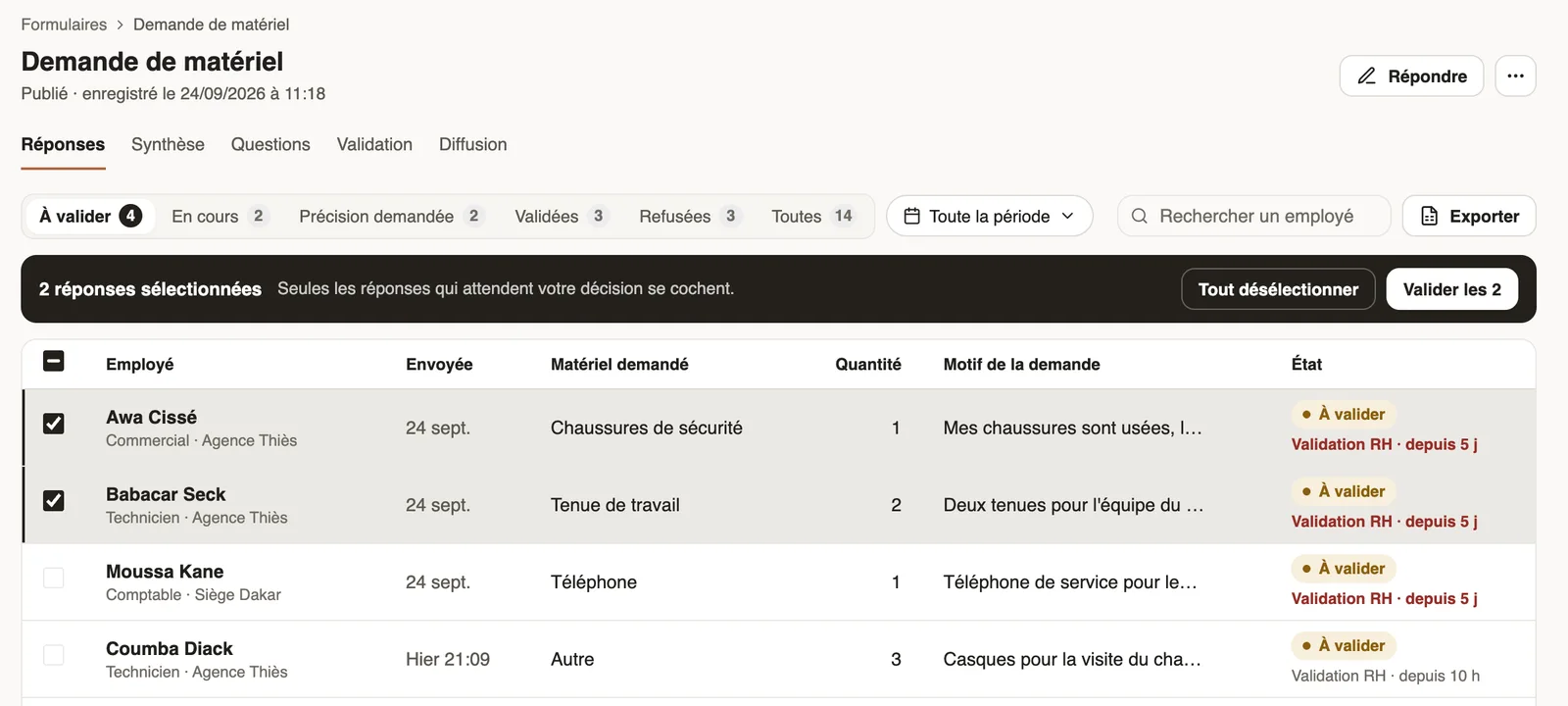
In Weplanify, the Responses tab of a published form shows one row per answer, one column per question and its Status.
Steps
- Pick a status: To approve (what waits for your decision, oldest first), In progress, Clarification asked, Approved, Rejected or All. Narrow down with the period and Search an employee.
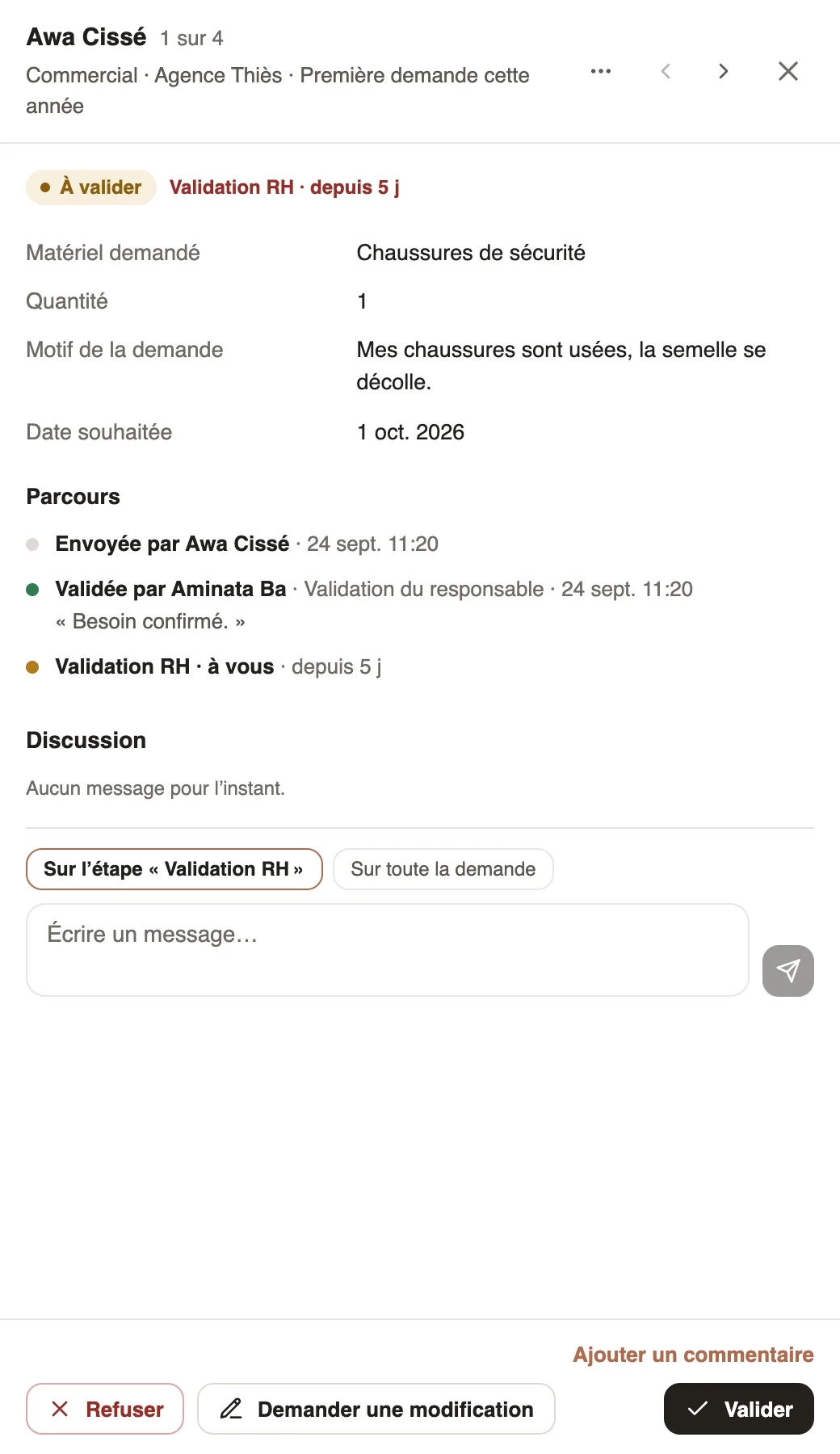
- Click a row: the detail opens on the side, with the answers, the Path and the Discussion; the arrows move to the next answer.
- Decide with Approve, Reject or Ask for a change (handle a request).
- For several answers, tick them then click Approve all followed by the number.
- Export downloads an Excel file of all filtered answers, with the employee, their position, their site, the date, the status and where the request stands.
Good to know
- In red: the answer has been waiting for more than 24 h with the same approver.
- A decision is sent after a few seconds: the message shown still lets you undo it.
- An administrator can decide instead of the expected approver: the detail says so.
- The detail's … menu offers Edit the answer. For overall figures: the Summary tab.
Go further
Read the summary of a form's responsesIn Weplanify, a form's Summary tab sums up its answers: key figures, one card per question and the approval steps where requests are waiting.Approve, refuse or send a request back for changesIn Weplanify, open a request waiting for you, discuss it if needed, then approve it, refuse it or ask its author to change it before deciding again.Make a request or fill in a form on mobileIn Weplanify, employees make their requests from the app: an expense, an advance, a schedule change, a report or any other form, then follow them.Receive employees' HR requestsIn Weplanify, HR requests is a category of forms (equipment, certificate, working hours) that employees find in their Make a request screen.Share a form through a public link or a posterIn Weplanify, open a form to people who have no account (day workers, subcontractors, clients) with a public link or a poster carrying a QR code.Link each response to an employee or a siteIn Weplanify, link each response of a form to an employee or a site: for an evaluation, an inspection or an incident report written on the ground.Choose an answer's state after each approvalIn Weplanify, each form answer has a state (In progress, Granted, Refused…) that changes with each approval; add your own states, such as Ordered.