
The planning alerts
In Weplanify, spot before publishing the slots in conflict (leave, double booking) and the days when the minimum staffing level is not reached.
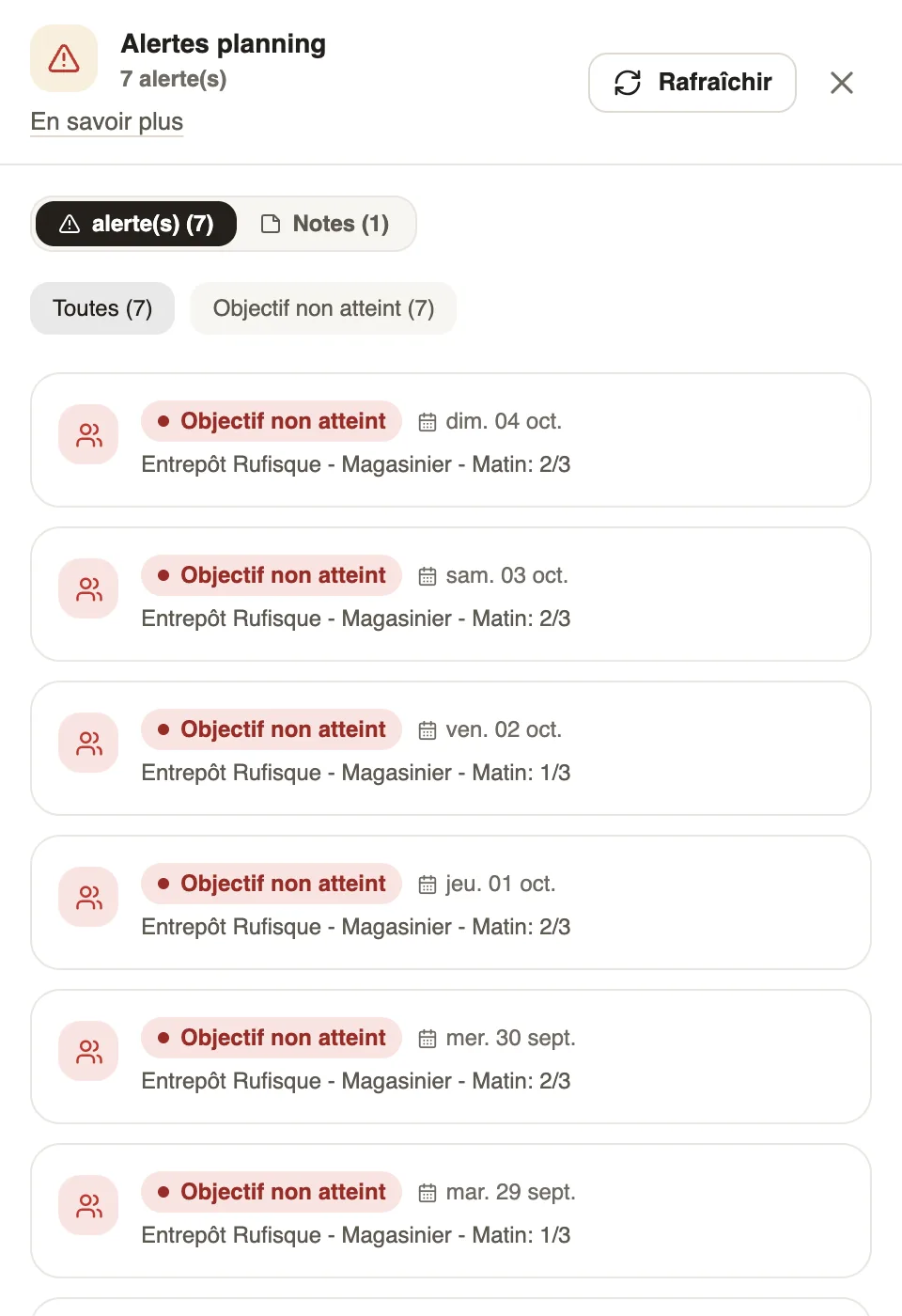
In Weplanify, conflicts show in two places: on the grid's slots, and in the Planning alerts panel, opened by the ⓘ icon or the banner above the grid.
On the slots
- Leave requested: an absence request is waiting that day; Absent: the absence is approved.
- Double booking: the slot overlaps another slot of the same employee.
In the panel
- Target not met: staffing is below the minimum set in the staffing targets ("Storekeeper · Morning: 1/3").
- Filter by type; Refresh runs the check again. There is no "resolve" button: fix the slot, the alert goes away.
Good to know
- The Notes tab of the same panel gathers the planning's notes.
- For an absence: approve or decline the request.
Go further
Set a minimum staffing level per site and jobIn Weplanify, set how many people you need at the very least per site, job and shift, and be warned whenever the planning falls short of that level.Leave a note on the planningIn Weplanify, leave an instruction on a period or a site, such as a stocktake, a visit or a closure, visible to everyone who opens the planning.Approve or reject an absence requestIn Weplanify, approve or reject an absence request from To handle or from its panel, which shows the effect on pay and on the balance before you decide.The team planningIn Weplanify, the planning says who works, when and where, week after week; the slots stay as drafts until you publish them to your employees.Copy a previous week into the planningIn Weplanify, copy one of the six previous weeks onto the week shown in a single click, when your rotations look alike from one week to the next.Publish the planningIn Weplanify, publish the week so that your employees see their slots: as long as they are drafts, only the people managing the planning can see them.