
Create a slot in the planning
In Weplanify, a slot says who works, on which days, at what time, on which site and in which job; it is created as a draft, for one or several employees.
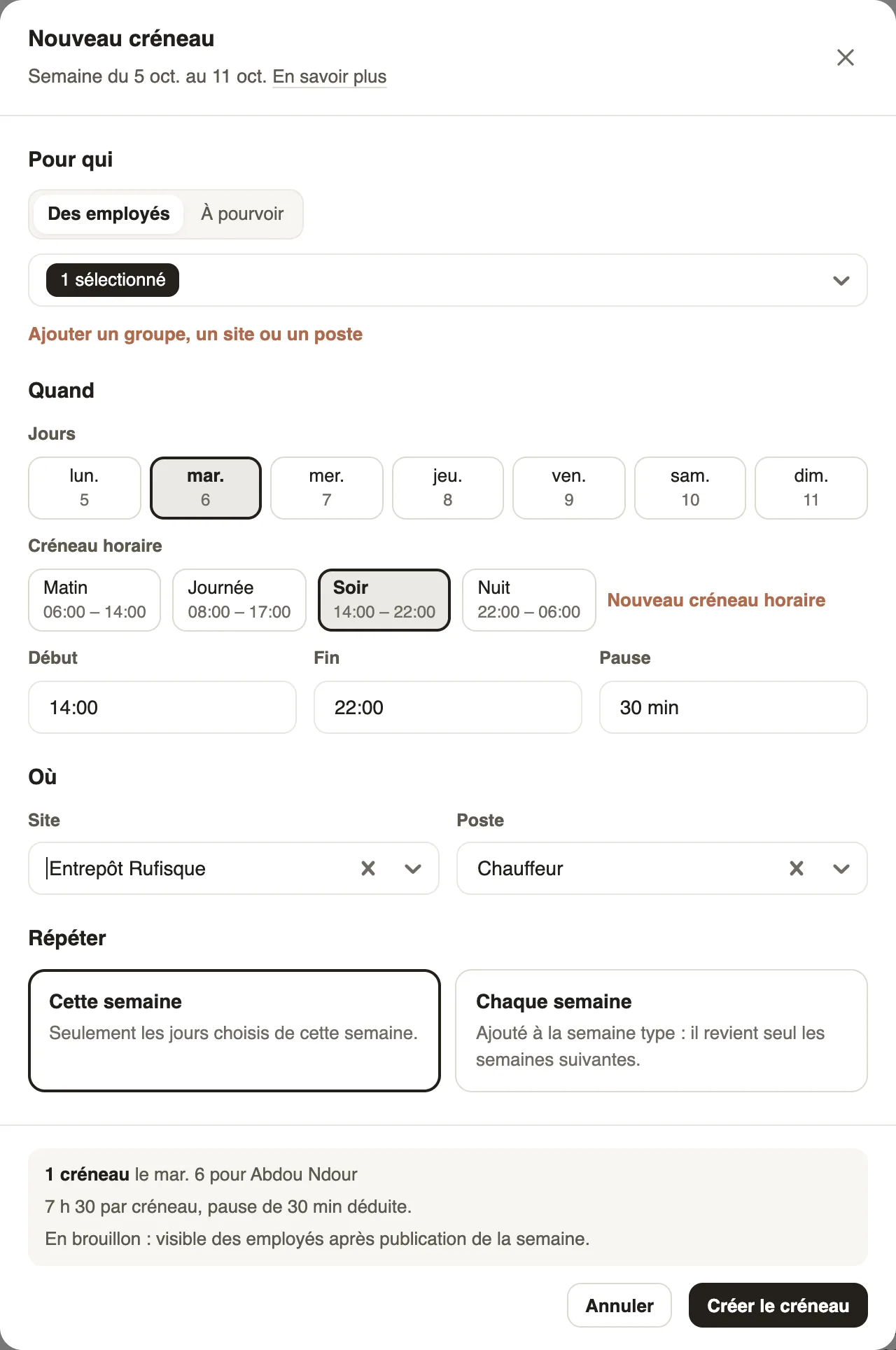
In Weplanify, the New slot window is filled from top to bottom: who, when, where; a summary at the bottom says what will be created.
Steps
- Click Slot in an empty cell of the grid, or ⋯ → New slot.
- Who: choose one or several employees, or Add a group, a site or a job to take them all at once. For a position without a name, see Open slot.
- When: tick the days, then choose a Shift (Morning, Day, Evening, Night) or enter start, end and break.
- Where: the site (by default, the employee's) and the job.
- Repeat: This week, or Every week to add it to the usual week. Then Create slot.
Good to know
- The summary gives the duration, break deducted, and warns of a conflict: absence, public holiday or another slot the same day. The slot is created anyway and flagged in the grid.
- Note, tasks and fields adds an instruction, a task list and your custom fields.
- The slot is a draft: remember to publish.
Go further
Offer an open slotIn Weplanify, publish a slot without a name, for example extra help on Saturday: the employees it is offered to can take it from their phone.The usual week (recurring planning)In Weplanify, an employee's usual week comes back on its own every week, shifted days off included, without typing the same slots over again.Add custom fields to slotsIn Weplanify, add to every slot a piece of information specific to your business, such as the vehicle, client or zone, and show it in the grid.Publish the planningIn Weplanify, publish the week so that your employees see their slots: as long as they are drafts, only the people managing the planning can see them.View your schedule on mobileSee your week in the Weplanify app: hours, break, position and location for each day, and your shift's task list.Manage jobs and sub-jobsIn Weplanify, create the list of jobs with their colour and their sub-jobs: they are used on employee records, for day labourers and in the planning.The team planningIn Weplanify, the planning says who works, when and where, week after week; the slots stay as drafts until you publish them to your employees.Create the work schedules (Morning, Evening, Night)In Weplanify, define the Morning, Day, Evening and Night schedules once, with their break and days, then pick them in one click in each slot.How lateness, missing time and overtime are computedIn Weplanify, each clocked day is compared with the planned slot: here is where lateness, missing time, time worked and overtime all come from.