
Filter and sort the planning
In Weplanify, show only the site, group or job you care about, choose what the slots display, and then sort the employees in the order you need.
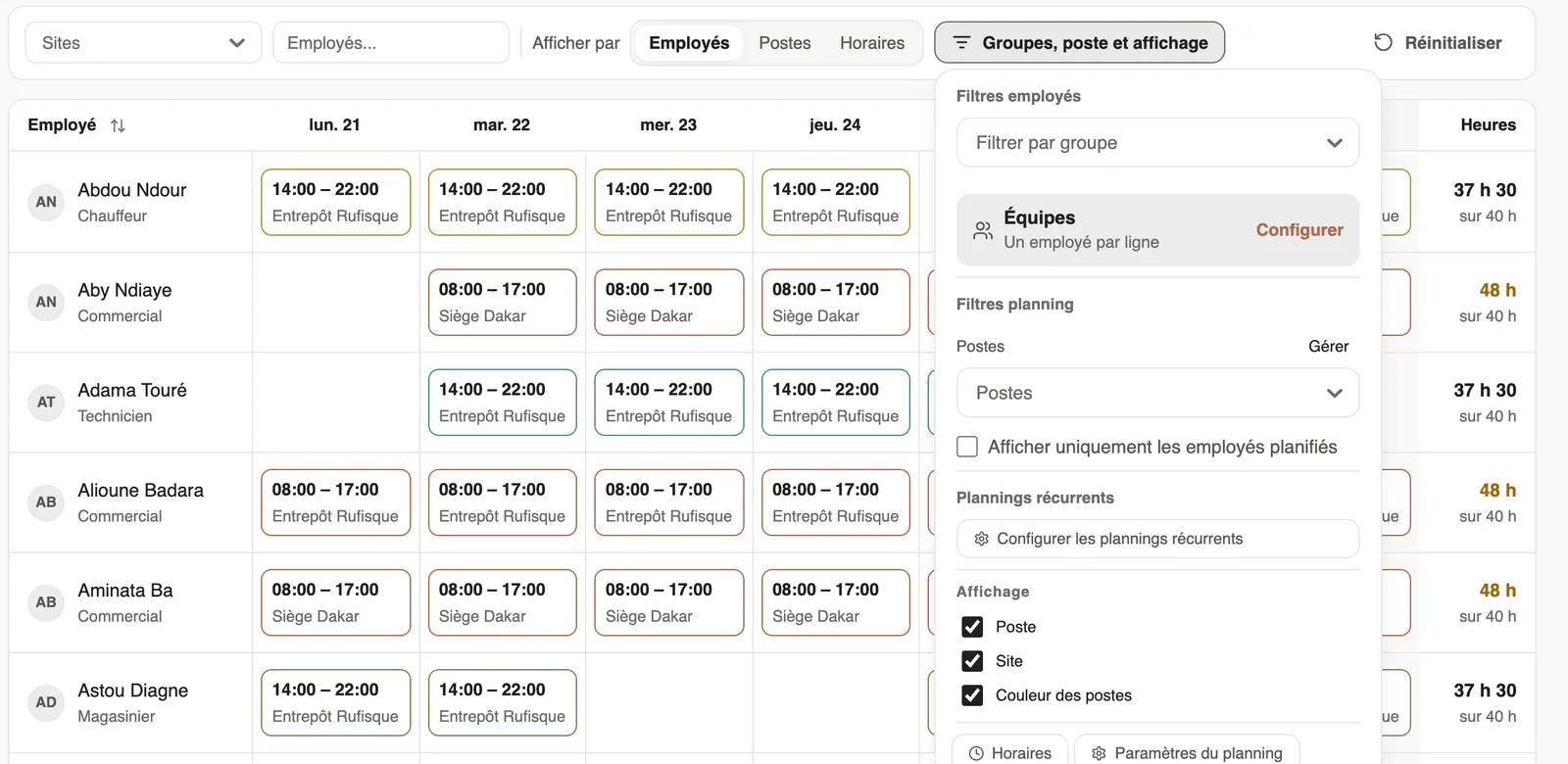
In Weplanify, the Filters button, next to the dates, opens the planning's filter bar.
Steps
- Sites: keep only one or several sites; Employees…: search for a person.
- Groups, job and display: Filter by group, choose Jobs, Show only planned employees.
- In the same menu, Display: tick what the slots show (job, site, job colours, your fields).
- Sort with the arrow of the Employee column: name, schedule, job or site. Reset clears everything.
Good to know
- Current filters also apply to publishing, copying a week and the PDF export.
- The same menu opens the schedules, teams, recurring schedules and planning settings.
- The number on the Filters button counts the active filters.
Go further
Publish the planningIn Weplanify, publish the week so that your employees see their slots: as long as they are drafts, only the people managing the planning can see them.Copy a previous week into the planningIn Weplanify, copy one of the six previous weeks onto the week shown in a single click, when your rotations look alike from one week to the next.Export the planning to PDFIn Weplanify, download the planning shown as a PDF, in compact initials or in full hours, to put it up in the break room or to send it around.Create the work schedules (Morning, Evening, Night)In Weplanify, define the Morning, Day, Evening and Night schedules once, with their break and days, then pick them in one click in each slot.Plan by teams and rotationsIn Weplanify, plan a whole team at once and rotate your teams over the morning, evening and night shifts with a ready-made rotation model to start.The usual week (recurring planning)In Weplanify, an employee's usual week comes back on its own every week, shifted days off included, without typing the same slots over again.Set a minimum staffing level per site and jobIn Weplanify, set how many people you need at the very least per site, job and shift, and be warned whenever the planning falls short of that level.Create and manage employee groupsIn Weplanify, a group brings employees together for planning, forms, approvals, bonuses and documents, and it also sets a manager's own scope.The team planningIn Weplanify, the planning says who works, when and where, week after week; the slots stay as drafts until you publish them to your employees.Add custom fields to slotsIn Weplanify, add to every slot a piece of information specific to your business, such as the vehicle, client or zone, and show it in the grid.Manage the planning's jobsIn Weplanify, keep the list of jobs (driver, storekeeper…) used in slots up to date; each job's colour outlines its slots so the grid is easy to read.The planning viewsIn Weplanify, switch from the week's planning to the month's, and read it by employee, by job or by schedule, in hours or in codes (M, D, E, N).