
Recruit: job offers and candidate tracking
In Weplanify, publish a job offer, share its application link and move each candidate forward, from their application to their employee record.
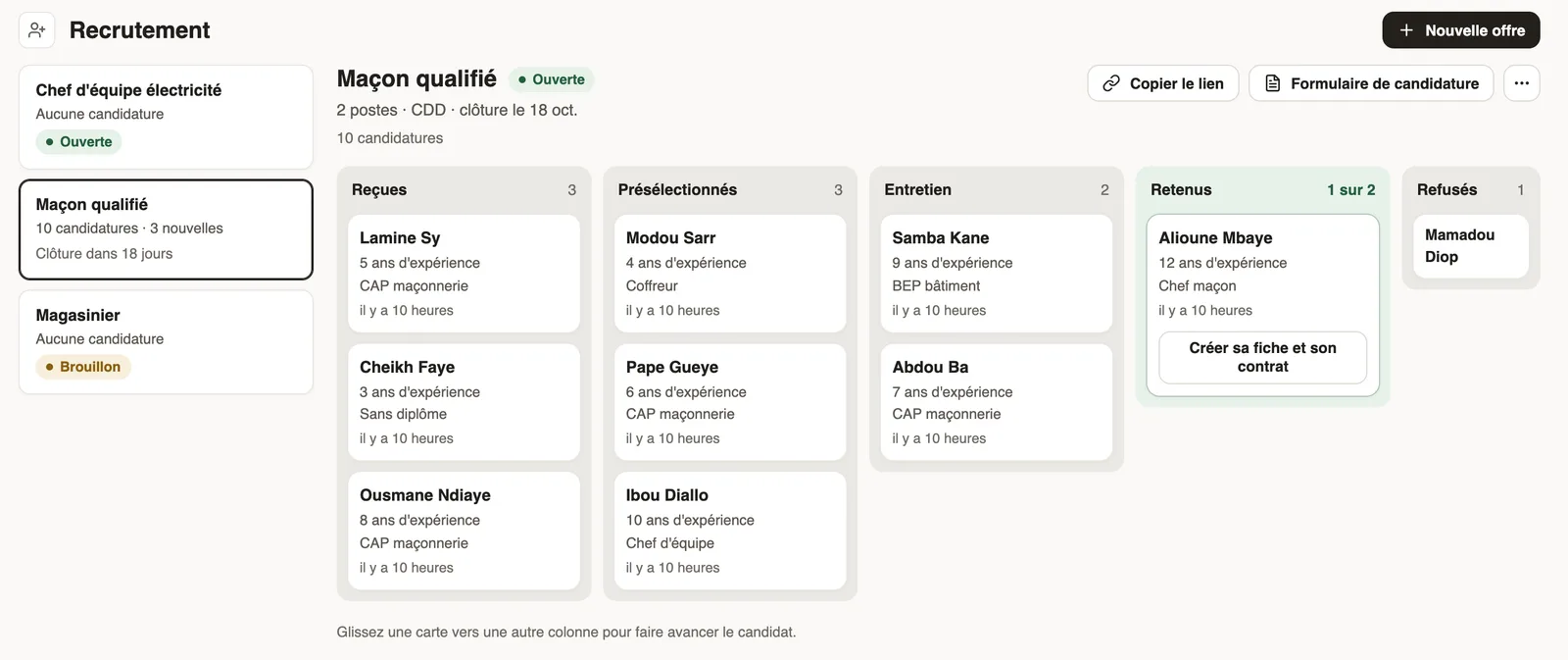
In Weplanify, Requests → Recruitment lists your offers on the left and, for the chosen offer, its candidates in columns: Received, Shortlisted, Interview, Hired and Rejected.
Steps
- Click New job offer: job title, position, site, contract type, number of positions, closing date, description and profile sought, then Create the offer.
- The offer is created as a draft, with a ready-to-use application form (name, email, phone, resume); Application form lets you adjust it.
- In the … menu, click Publish the offer, then Copy the link and share it (WhatsApp, email, social networks).
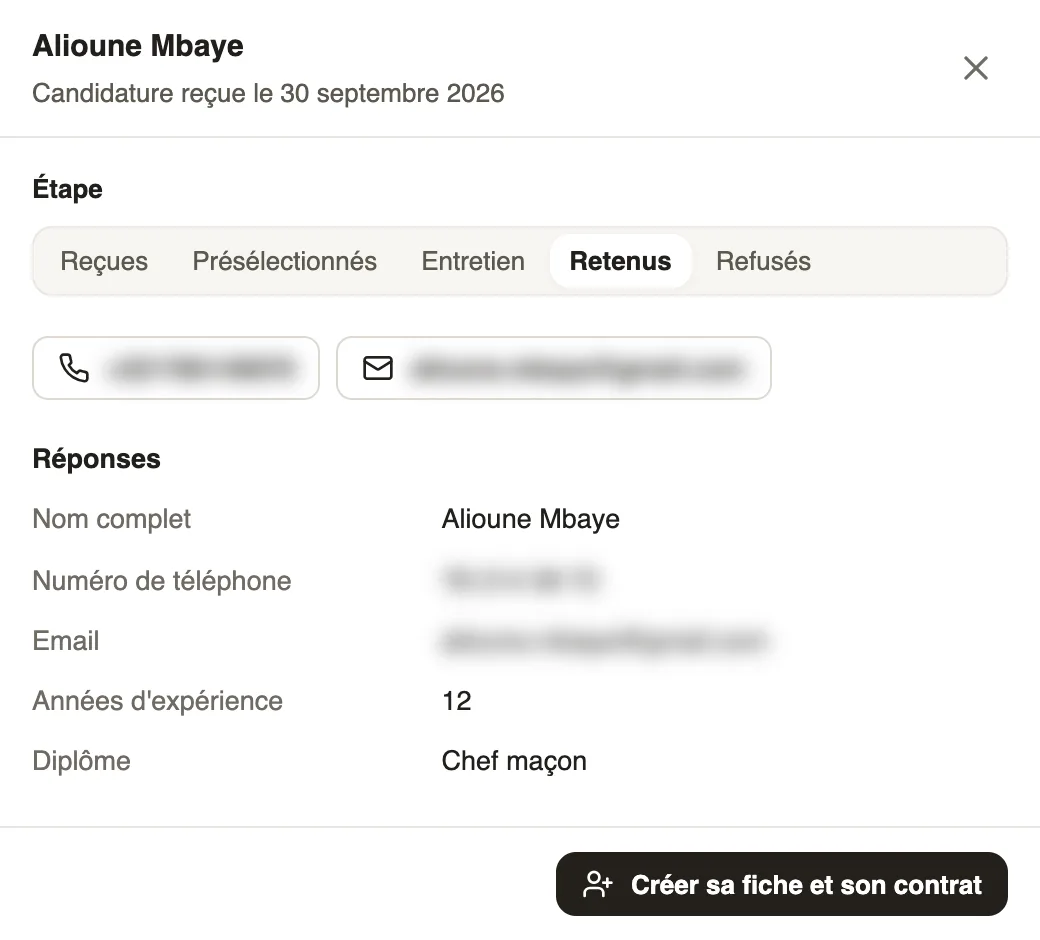
- Each application lands in Received. Drag a card to another column to move the candidate forward, or change their Step in their panel.
- For a hired candidate, click Create their record and contract: adding an employee opens, already filled in with their name, phone, email, position and site (add an employee), then their contract.
Good to know
- The Hired column counts hires against the number of positions ("1 of 2").
- Close the offer (… menu) cuts its application link; Reopen the offer restores it.
- Once the record exists, the candidate's card says so and their panel offers Open their record.
Go further
Add an employee in WeplanifyIn Weplanify, an employee is created in four short steps; the name and phone number are enough, the rest can be completed later on their record.Create or edit an employment contractIn Weplanify, record an employee's contract and pay so that they are included in payroll; only one contract can be running for them at a time.Weplanify forms: requests, reports and surveysIn Weplanify, every company form sits in a single list, sorted by category, showing what is waiting for your decision and what is running late.