
Run a survey or an evaluation with your employees
In Weplanify, run a satisfaction survey or an evaluation with your teams, without any approval step, and read the results question by question.
In Weplanify, a survey collects your teams' opinions, with no decision to take. It is created like any form, from the A survey or an evaluation need.
Steps
- In Requests → Forms, click New form, then A survey or an evaluation.
- Choose the Team Satisfaction Survey or Employee Evaluation template, or Blank form; pick the category (Surveys, for example) and keep No validation.
- Click Create and adjust the questions: Rating out of 5, Scale and Choice from a list give easy-to-read results (add questions).
- At the Sharing step, choose who answers and, if needed, Over a period; feature the survey on the home screen, then publish it.
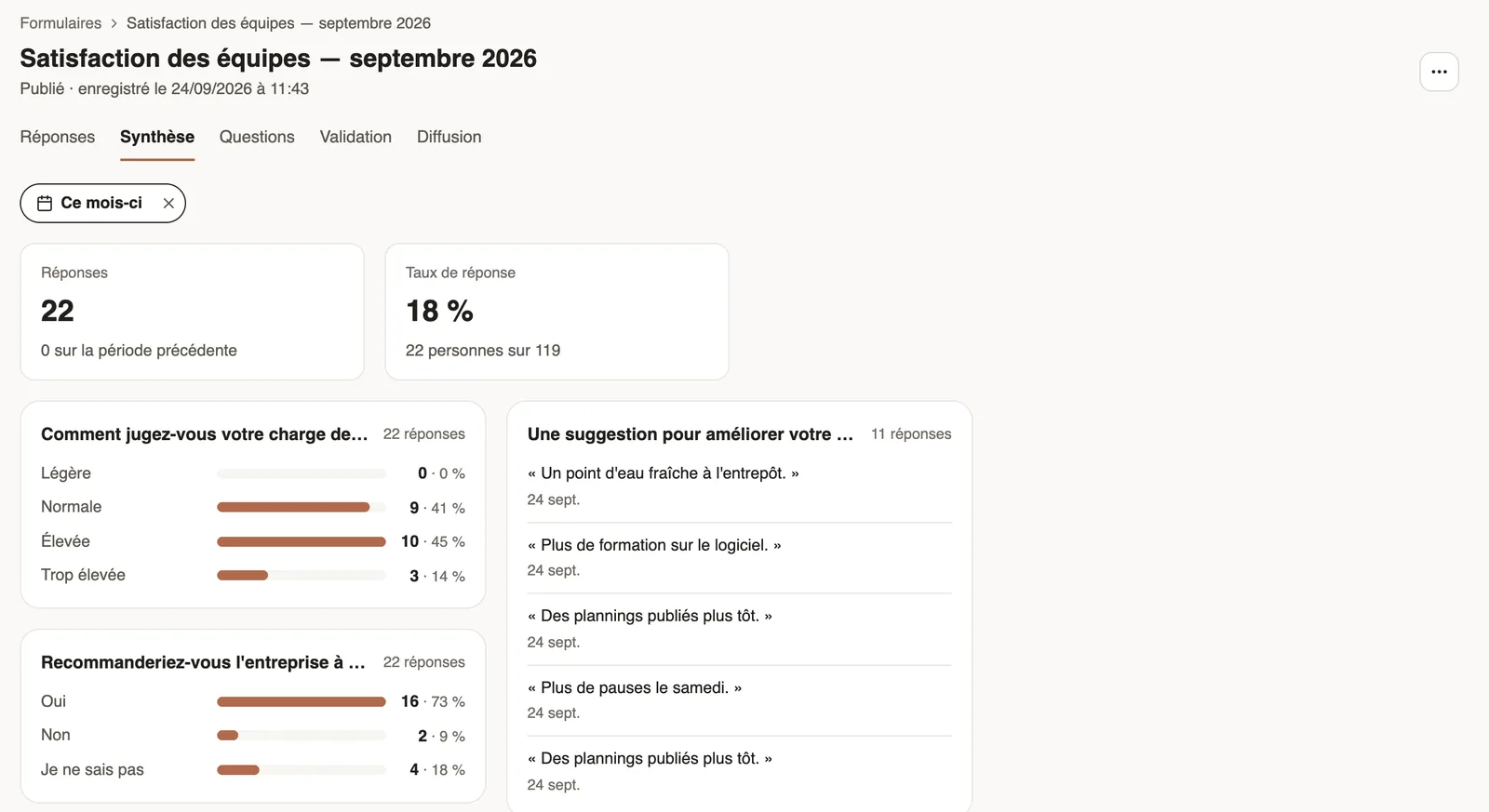
- Follow the results in the Summary tab.
Good to know
- For an evaluation, each answer can be about the employee being evaluated (subject of a response).
- Forms in the Quizzes category show each person's Score, as a percentage, in the Responses tab.
- A closed survey keeps its answers and its summary.
Go further
Create a form and add its questionsIn Weplanify, create a form from your need and a ready-made template, then adjust its questions while the phone preview shows what employees see.Publish a form and let employees knowIn Weplanify, publish a form and let people know: notification, New card on the home screen, poster; then close it or reopen it whenever needed.Read the summary of a form's responsesIn Weplanify, a form's Summary tab sums up its answers: key figures, one card per question and the approval steps where requests are waiting.Link each response to an employee or a siteIn Weplanify, link each response of a form to an employee or a site: for an evaluation, an inspection or an incident report written on the ground.