
The usual week (recurring planning)
In Weplanify, an employee's usual week comes back on its own every week, shifted days off included, without typing the same slots over again.
In Weplanify, the usual week (recurring planning) saves you from typing the same hours every week. Its slots carry the ↻ icon in the grid.
Steps
- The simplest: in a slot, choose Repeat → Every week.
- For several people: Filters → Groups, job and display → Configure recurring schedules.
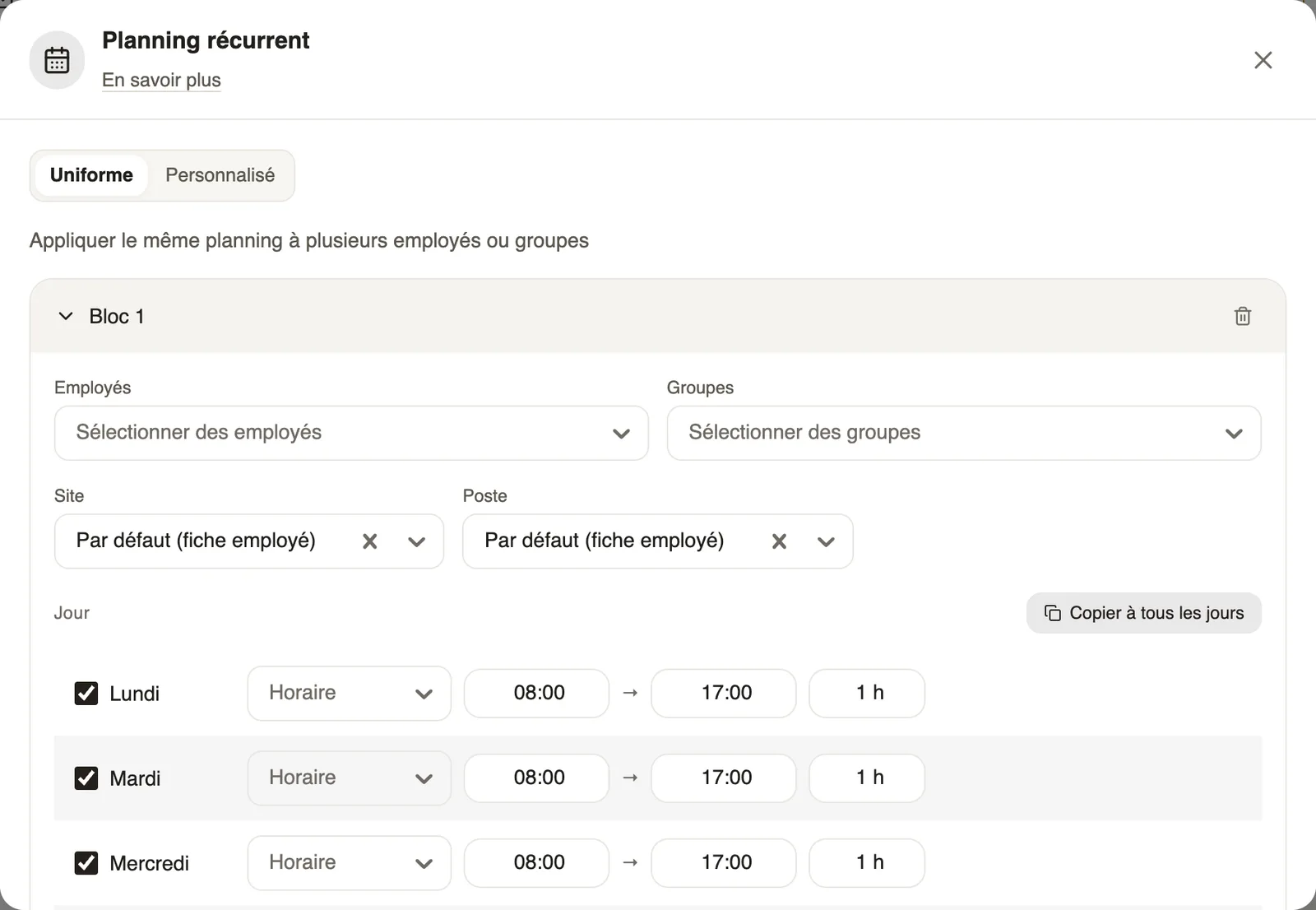
- Uniform tab: the same week for employees or groups (one block per team). Custom tab: one week per person.
- Tick the working days, set schedule, site and job (Copy to all days is quicker), then Save.
Good to know
- An unticked day is a day off: shift them from one person to the next to cover the weekend.
- Editing a ↻ slot offers to change only this week; the usual week stays the same. The Recurring button of the selection turns a real week into the usual week.
- For a whole week off, create an absence. Priority: public holiday, then the week's slots, then the usual week, then the days off on the record.
Go further
Create a slot in the planningIn Weplanify, a slot says who works, on which days, at what time, on which site and in which job; it is created as a draft, for one or several employees.Act on several slots at onceIn Weplanify, select several slots to edit, copy or transfer them, turn them into an absence or into a team, or delete them all in a single go.Create an absence or leaveIn Weplanify, enter an employee's absence or leave in three choices: who, what and when; the balance after the absence shows before you save.Public holidaysIn Weplanify, check and complete the year's public holidays: they are used by the planning, by leave counting, by the time clock and by payroll.An employee's hours, days off and overtimeIn Weplanify, the usual hours on the record serve as the reference on days when the employee has neither a shift in the planning nor a standard week.The team planningIn Weplanify, the planning says who works, when and where, week after week; the slots stay as drafts until you publish them to your employees.Copy a previous week into the planningIn Weplanify, copy one of the six previous weeks onto the week shown in a single click, when your rotations look alike from one week to the next.Filter and sort the planningIn Weplanify, show only the site, group or job you care about, choose what the slots display, and then sort the employees in the order you need.Move or copy a slot by drag and dropIn Weplanify, drag a slot to another day or another employee to move it, or hold down Alt to copy it instead, without typing anything again.Edit or delete a slot in the planningIn Weplanify, clicking a slot opens its window to change the employee, the schedule, the site or the job, or to delete it from the planning.