
Create an absence from the planning
In Weplanify, record that a scheduled employee will be absent straight from their slots, without leaving the planning or typing the dates again.
In Weplanify, when an employee warns they will not come, their absence is created from the slots concerned.
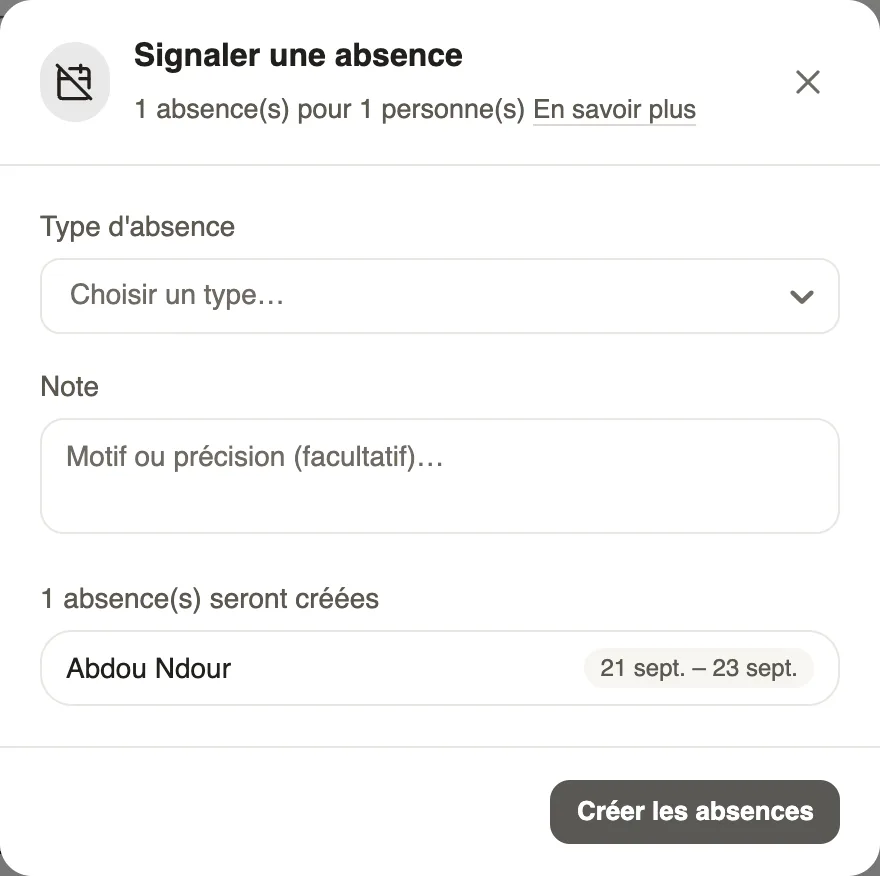
Steps
- Switch to selection mode and click the slots of the days off.
- Click Absence.
- Choose the Absence type (paid leave, sickness…) and add a note if needed.
- Check the preview (employee and period), then Create absences.
Good to know
- Consecutive days for the same employee make a single absence; a day already covered by an absence is skipped.
- The absence follows the usual approval circuit.
- The slots stay: reassign them with Transfer to (selection), ticking Report an absence for the replaced employee.
Go further
Act on several slots at onceIn Weplanify, select several slots to edit, copy or transfer them, turn them into an absence or into a team, or delete them all in a single go.Absence typesIn Weplanify, each absence type says whether it is paid, unpaid or deducted from the leave balance: it is the type that decides the effect on payroll.Approve or reject an absence requestIn Weplanify, approve or reject an absence request from To handle or from its panel, which shows the effect on pay and on the balance before you decide.Create an absence or leaveIn Weplanify, enter an employee's absence or leave in three choices: who, what and when; the balance after the absence shows before you save.