
DocumentationScheduling
The team planning
In Weplanify, the planning says who works, when and where, week after week; the slots stay as drafts until you publish them to your employees.
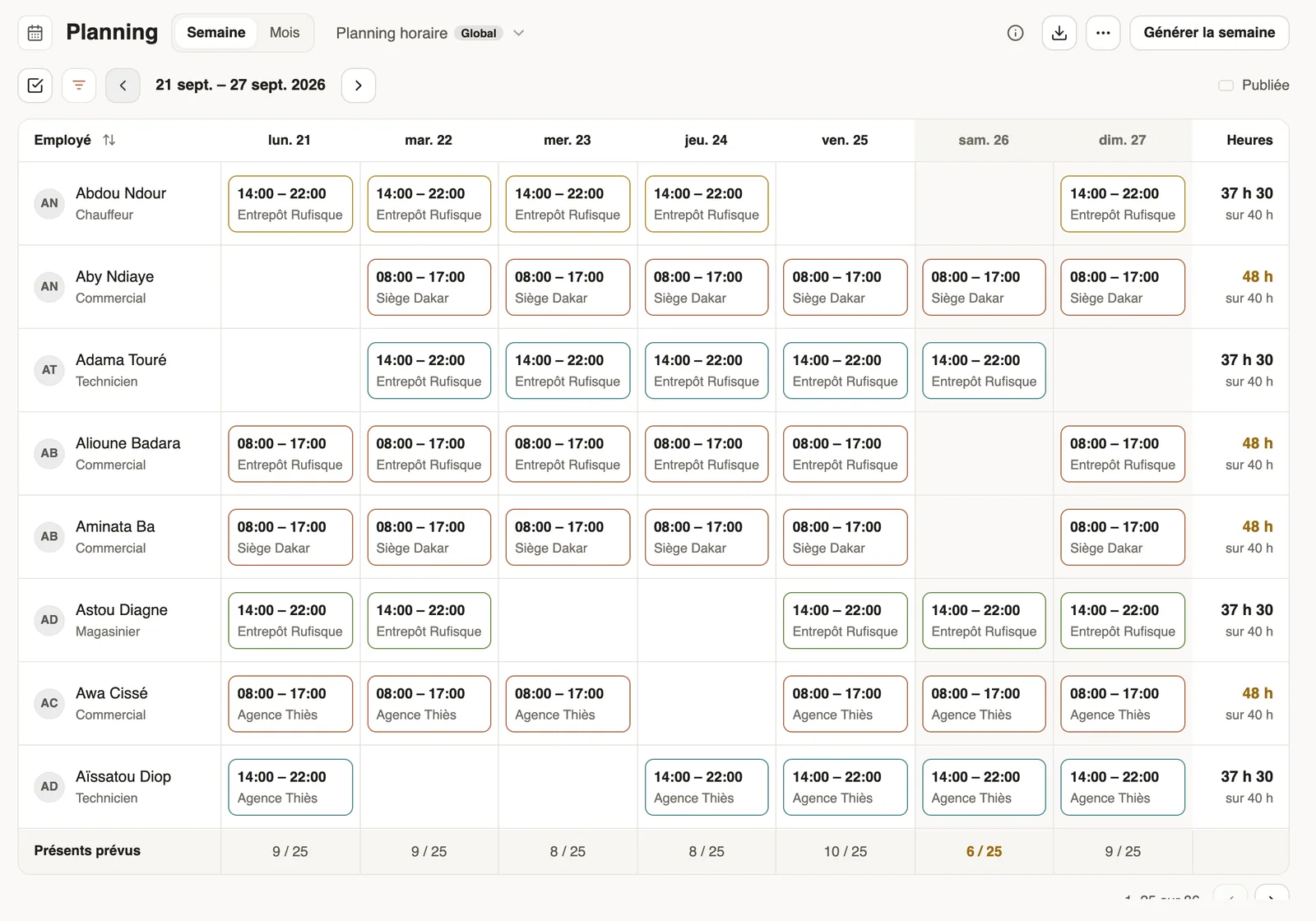
In Weplanify, the planning (Time → Planning menu) gathers your teams' slots: a slot is an employee, a day, a schedule, a site and a job.
Steps
- Prepare your schedules (Morning, Day, Evening, Night) and your jobs.
- Fill the week: slot by slot, with the usual week, by copying a week or by generating the week.
- Check the alerts: leave, double bookings, understaffing.
- Publish: employees receive their planning on the mobile app.
Good to know
- The Hours column compares planned hours with the contract's hours ("37 h 30 of 40 h"); going over shows in colour.
- The Planned staff row counts, day by day, the planned employees; a weak day is flagged.
- The planning is the reference for the time clock and the monthly payroll. To find your way: views and filters.
Go further
The planning alertsIn Weplanify, spot before publishing the slots in conflict (leave, double booking) and the days when the minimum staffing level is not reached.Add custom fields to slotsIn Weplanify, add to every slot a piece of information specific to your business, such as the vehicle, client or zone, and show it in the grid.Copy a previous week into the planningIn Weplanify, copy one of the six previous weeks onto the week shown in a single click, when your rotations look alike from one week to the next.Create a slot in the planningIn Weplanify, a slot says who works, on which days, at what time, on which site and in which job; it is created as a draft, for one or several employees.Offer an open slotIn Weplanify, publish a slot without a name, for example extra help on Saturday: the employees it is offered to can take it from their phone.Plan by teams and rotationsIn Weplanify, plan a whole team at once and rotate your teams over the morning, evening and night shifts with a ready-made rotation model to start.The planning's workspacesIn Weplanify, a workspace is a separate planning, per department or per site, with its own members, its own schedules and its own set of teams.Export the planning to PDFIn Weplanify, download the planning shown as a PDF, in compact initials or in full hours, to put it up in the break room or to send it around.Filter and sort the planningIn Weplanify, show only the site, group or job you care about, choose what the slots display, and then sort the employees in the order you need.Generate the week automaticallyIn Weplanify, let the planning share out mornings, evenings, nights and rest days according to your criteria: leave, night duty, fixed hours and days off.Move or copy a slot by drag and dropIn Weplanify, drag a slot to another day or another employee to move it, or hold down Alt to copy it instead, without typing anything again.Create the work schedules (Morning, Evening, Night)In Weplanify, define the Morning, Day, Evening and Night schedules once, with their break and days, then pick them in one click in each slot.Edit or delete a slot in the planningIn Weplanify, clicking a slot opens its window to change the employee, the schedule, the site or the job, or to delete it from the planning.Leave a note on the planningIn Weplanify, leave an instruction on a period or a site, such as a stocktake, a visit or a closure, visible to everyone who opens the planning.Set a minimum staffing level per site and jobIn Weplanify, set how many people you need at the very least per site, job and shift, and be warned whenever the planning falls short of that level.The usual week (recurring planning)In Weplanify, an employee's usual week comes back on its own every week, shifted days off included, without typing the same slots over again.Manage the planning's jobsIn Weplanify, keep the list of jobs (driver, storekeeper…) used in slots up to date; each job's colour outlines its slots so the grid is easy to read.Publish the planningIn Weplanify, publish the week so that your employees see their slots: as long as they are drafts, only the people managing the planning can see them.Act on several slots at onceIn Weplanify, select several slots to edit, copy or transfer them, turn them into an absence or into a team, or delete them all in a single go.Create an absence from the planningIn Weplanify, record that a scheduled employee will be absent straight from their slots, without leaving the planning or typing the dates again.The planning viewsIn Weplanify, switch from the week's planning to the month's, and read it by employee, by job or by schedule, in hours or in codes (M, D, E, N).View your schedule on mobileSee your week in the Weplanify app: hours, break, position and location for each day, and your shift's task list.Employee time clockIn Weplanify, the Time entries screen shows, day by day, each employee's arrival and exit against what was planned, and what is left to fix.Prepare the month's time and absencesIn Weplanify, the Time and absences step gives each employee's paid days, leave, absences and overtime, taken from the source chosen for their site.Manage leave and absencesIn Weplanify, the Leave and absences screen gathers the whole team's requests, as a list or a calendar, with the requests to approve shown first.Create an absence or leaveIn Weplanify, enter an employee's absence or leave in three choices: who, what and when; the balance after the absence shows before you save.Getting started with WeplanifyIn Weplanify, the web is for managers and the mobile app is for employees: here is where to start, from creating the account to the first published schedule.An employee's hours, days off and overtimeIn Weplanify, the usual hours on the record serve as the reference on days when the employee has neither a shift in the planning nor a standard week.Payroll in WeplanifyIn Weplanify, the monthly payroll is prepared in five steps, from time, absences and variable elements up to the payslips, the payment and the closing.See who is present, late, without an exit or absentIn Weplanify, the tabs of the day's list sort employees into present, late, no exit, absent or rest day, with a count for each of the groups.Hours worked and planned hours on the dashboardIn Weplanify, the dashboard compares the hours clocked over the period with the hours planned in the schedule, and shows where overtime is being done.See who has arrived today from the dashboardIn Weplanify, the dashboard's Attendance today card counts live, shift by shift, the employees who have already arrived out of all those expected.